Emails and notifications on Lutra Connect
This guide explains the emails Lutra Connect sends you and your team, and how to choose who gets them and when. Lutra emails never include patient details: you see those after signing in.
Last updated 22 days ago
There are two kinds of email, and each is set in a different place:
Your organisation's emails: new referrals and requests, replies, anything urgent and a summary of what needs action. They go to a shared team mailbox and to your organisation's owners and admins. Owners and admins set them in Organisation emails.
Your own emails: referrals and requests you're part of, for example one that names you as the clinician or one you sent. Everyone sets these for themselves in My emails.
Lutra also shows notifications inside the app, under the bell at the top of the page. Those are separate from email and are covered near the end of this guide.
Setting up your organisation's emails
Only owners and admins can change these. If you're a member, you'll find your own emails under My emails instead.
Open Organisation emails
Click Settings, then Organisation emails under Organisation. You'll also find a link to it on the Members page.
Changes save as soon as you make them. A message at the bottom of the screen confirms each one, for example "Owners and admins won't be emailed".
Choose who receives them
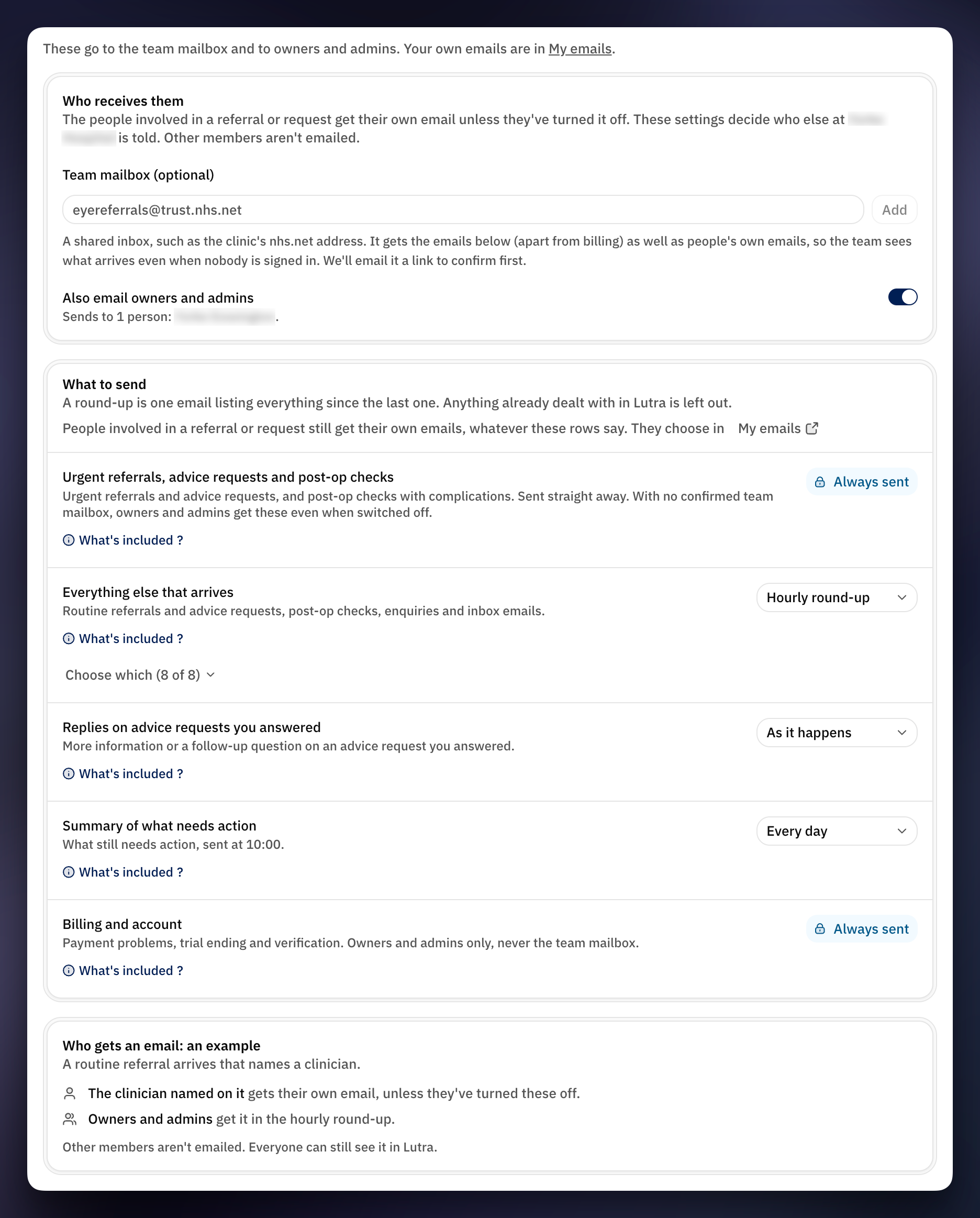
Under Who receives them, you can send your organisation's emails to:
A team mailbox: a shared inbox, such as your clinic's nhs.net address. See "Adding a team mailbox" below.
Owners and admins: turn on Also email owners and admins. The line underneath shows who that reaches.
You can use either or both. Other members aren't emailed, but everyone can still see every referral and request in Lutra Connect.
With no confirmed team mailbox and owners and admins switched off, routine emails reach only the people involved. Anything urgent still goes to owners and admins, so it's never missed.
Choose what to send, and when
Under What to send, each row covers one kind of email. Pick when each row is sent:
As it happens: one email each time.
Hourly round-up: one email each hour listing everything since the last.
Daily round-up: one email each morning at 08:00.
Don't email: nothing is sent for this row.
The rows are:
The exact wording depends on whether your organisation sends or receives referrals.
Choosing which emails a row sends
Click Choose which under a row to untick the kinds you don't want, for example patient enquiries. The count, such as "5 of 6", shows how many are still sent. If you untick the last one, the row changes to Don't email.
Seeing exactly what a row sends
Click What's included under any row. A panel opens listing exactly what is sent, what isn't, when it's sent and who gets it.
Who gets an email: an example
At the bottom of the page, an example shows who would be emailed about one referral under your current settings.
People named on a referral or request, or who sent it, still get their own email whatever these rows say. They choose that in My emails.
Choosing your own emails
Everyone can choose whether they're emailed about referrals and requests they're part of. Your choices apply only to you, and only in the organisation you're signed in to.
Opening My emails
Click your picture at the bottom of the left-hand menu, then My emails. You can also find it in Settings under Your account, or click Email settings at the bottom of the notifications panel.
What you're emailed about
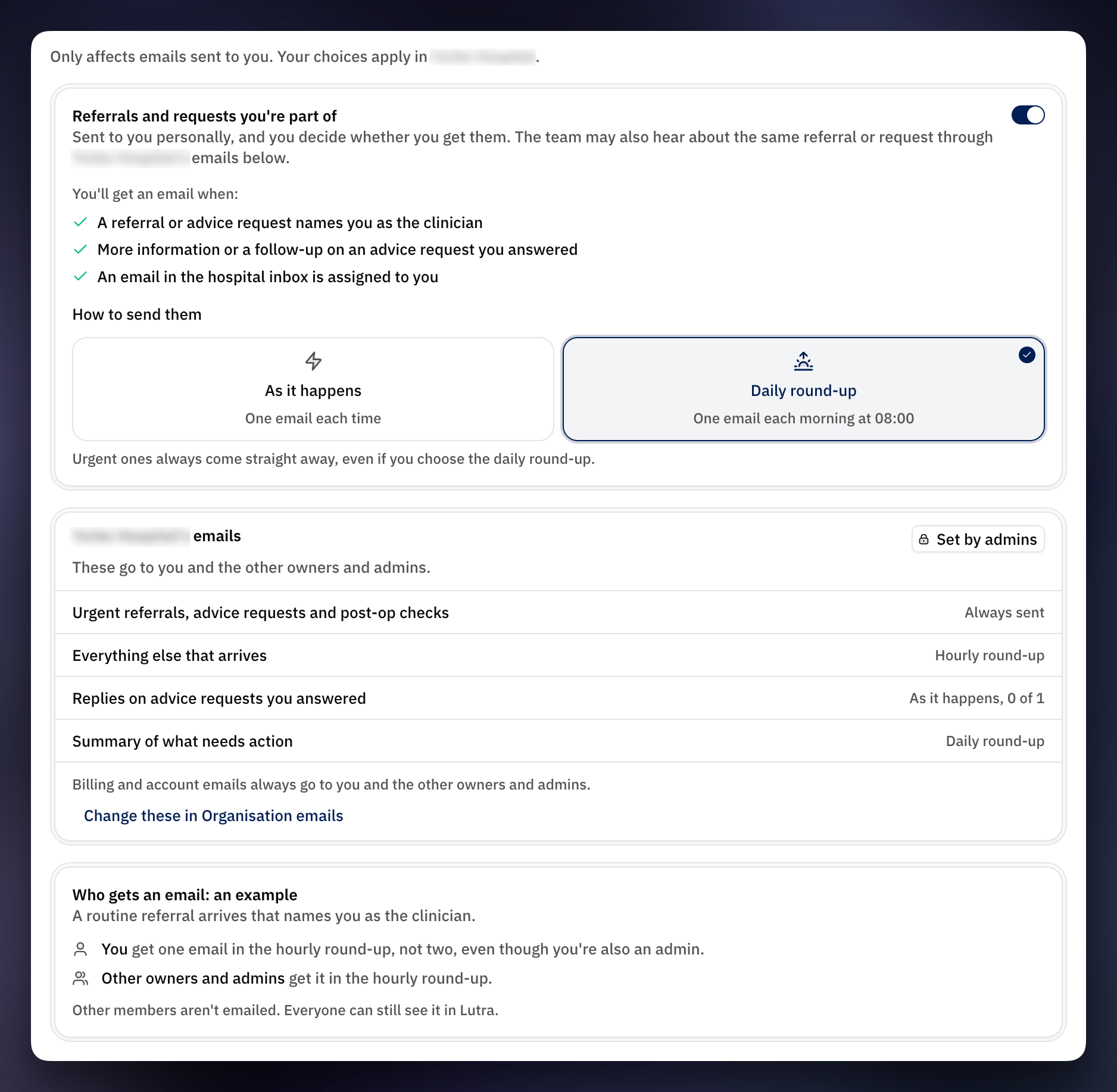
Under Referrals and requests you're part of, a list shows exactly when you'll get an email. If your organisation receives referrals, that's when:
A referral or advice request names you as the clinician
More information or a follow-up on an advice request you answered
An email in your Lutra email inbox is assigned to you
If your organisation sends referrals, that's when:
A referral you sent is accepted, declined or transferred
An advice request you sent is answered, or a question is asked about it
An appointment or surgery is booked for a referral you sent
A post-op check you sent is reviewed
Choosing when they arrive
Under How to send them, choose:
As it happens: one email each time.
Daily round-up: one email each morning at 08:00.
Urgent ones always come straight away, even if you choose the daily round-up.
Turning them off
Turn off the switch next to Referrals and requests you're part of. The list is struck through so you can see what you'll miss, and a message tells you what happens to urgent emails:
If you're an owner or admin, you'll usually still get urgent emails, because they're sent to owners and admins. The message tells you if that's not the case.
If you're a member, you won't get urgent emails either. The message tells you who still does, such as your team mailbox.
Turning these off doesn't affect your organisation's emails. If you're an owner or admin and your organisation emails owners and admins, you'll still get those.
See what your organisation sends
Below your own settings, a box shows your organisation's emails: who gets them and when. Owners and admins can click Change these in Organisation emails.
What counts as urgent
Urgent emails are always sent straight away. Nobody can switch them off for the organisation, and they ignore every timing.
If your organisation receives referrals, these are urgent:
Referrals marked Urgent, Suspected Cancer or Emergency
Advice requests marked Urgent, Suspected Cancer or Emergency
Post-op checks with any complication recorded, in either eye, including one typed under "Other"
Public referral forms marked Urgent, Suspected Cancer or Emergency
If your organisation sends referrals, public referral forms marked Urgent, Suspected Cancer or Emergency are urgent.
Anything marked Routine, or with no priority, isn't urgent. It's sent with "Everything else that arrives", at the timing you've chosen.
Who gets urgent emails
The team mailbox, once it's confirmed.
Owners and admins: always when there's no confirmed team mailbox. When there is one, only if Also email owners and admins is on.
The clinician named on a referral or advice request, unless they've turned off their own emails.
This means an urgent referral always reaches someone at your organisation, even if nobody is named on it.
Round-ups and the summary
Round-ups
A round-up is one email listing everything since the last one, instead of an email each time.
Hourly round-ups go out on the hour.
Daily round-ups go out at 08:00.
Anything already dealt with in Lutra Connect is left out. For example, a referral someone has already triaged won't appear.
If everything has been dealt with, no round-up is sent.
If an address would get the same referral more than once, for example because someone is both an admin and the named clinician, they get one email at the sooner timing.
The summary of what needs action
The summary is a single email at 10:00, every day or every Monday. It shows:
How much needs action, and how much of it is urgent. These are the same figures as the badges in Lutra Connect.
Follow-ups that are due, overdue or have been put off more than once.
Referrals and requests your organisation sent that were declined.
If your organisation sends referrals, what you're waiting on others for.
It goes to the team mailbox and, if they're switched on, to owners and admins. If there's nothing to report, it isn't sent.
Reading a Lutra email
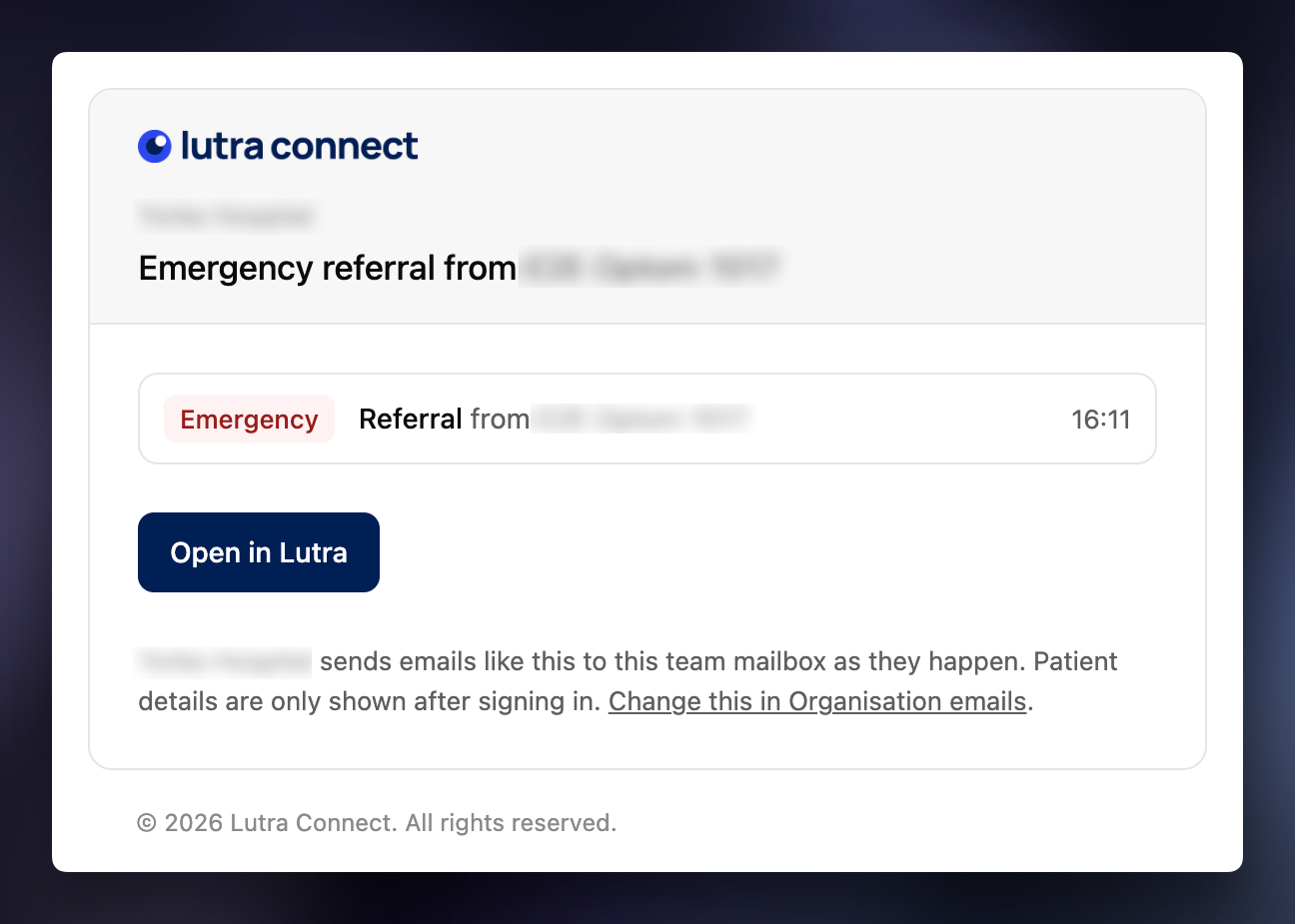
Every Lutra email is laid out the same way:
The line at the top names your organisation, and for a round-up or summary, what kind of email it is. For example, "City Eye Unit · Hourly round-up".
The heading says what happened and who it's from. For example, "Urgent referral from High Street Opticians", "Referral accepted by City Eye Unit" or "2 new referrals and 1 patient enquiry".
The details list each item with its priority and the time it arrived.
Open in Lutra takes you straight to it (in a round-up, Open Lutra). You'll need to sign in.
The small print at the bottom says why you got the email and links to the setting that sent it, either Organisation emails or My emails.
The subject line repeats the heading and your organisation's name, so you can sort or filter them in your inbox.
Lutra emails never say who the patient is. No names, dates of birth or NHS numbers. A post-op check email may name the complication recorded, such as endophthalmitis, but never the patient. You see their details only after signing in.
Notifications in Lutra Connect
As well as emails, Lutra Connect shows notifications inside the app. Click the bell at the top of any page to see them. A number on the bell shows how many you haven't read.
Unread shows new notifications. All shows the ones you've already read too.
Filter by topic, such as referrals or advice requests.
Click a notification to go to it. Click Mark all read to clear the count.
Click Clear read at the bottom to remove ones you've read.
You get a notification for a referral or request when you've added to it. If nobody at your organisation has added to it yet, its owners and admins get the notification instead.
Notifications can't be turned off, and they don't follow your email settings. To change your emails, click Email settings at the bottom of the notifications panel.
Was this helpful?
Still need help? Ask the team